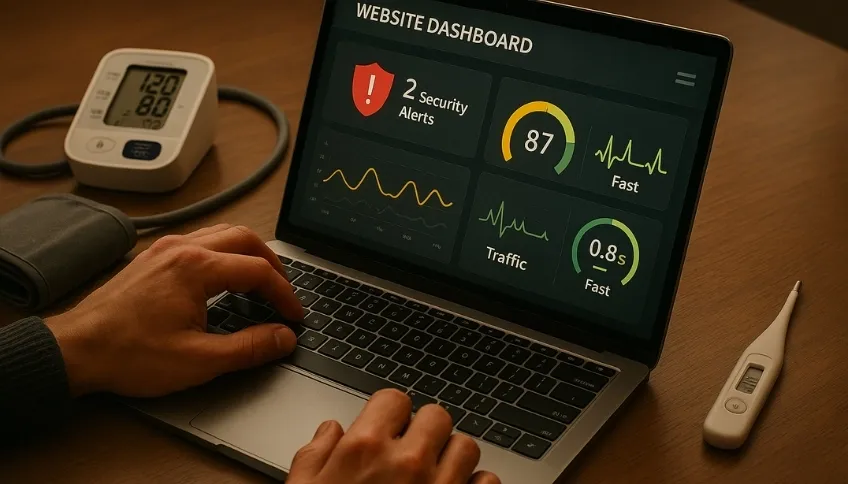
Your WordPress website is the heart of your digital business. It works, gets visits, and generally does its job. But do you ever get that feeling that something isn’t quite right? Maybe you feel it’s a bit slower, or you worry about whether it is truly secure. In short, it works, but… is it really healthy?
Small invisible problems in WordPress, if ignored, can turn into disasters: a hacked website, a crash at the worst possible time, or a Google penalty. But you don’t need to be a technical expert to do a basic checkup. We have prepared a health checklist for your WordPress site with 10 points you can check yourself in less than 15 minutes.
The Annual Medical Checkup
You don’t need to be a doctor to know that it is good to take your temperature or measure your blood pressure from time to time. These are “vital signs” that give you a general idea of your health. If something is out of the ordinary, you know it is time to call a specialist.
This checklist is exactly that: the thermometer and blood pressure monitor for your website. It will allow you to take its vital signs to know if it is in good health or if it is time to seek professional help before a small symptom becomes a serious illness.
Your Checkup in 10 Steps
1. The Speed Test
- What to check: Go to Google’s PageSpeed Insights tool, enter your website’s URL, and look at the score, especially for mobile devices.
- Why it matters: Speed is the first indicator of your website’s health. A low score not only frustrates your customers but also harms your search rankings on Google.
2. The Mobile Review
- What to check: Open your website on your own mobile phone. Navigate, click the buttons, try to fill out your contact form. Is it easy? Does everything look good?
- Why it matters: More than half of your visitors arrive from a mobile device. If the experience is bad, you are losing more than half of your opportunities.
3. The Trust Lock (SSL)
- What to check: Look at your browser’s address bar when visiting your website. Does a closed padlock appear? Does your URL start with
https://? - Why it matters: Without that lock, browsers mark your site as “Not Secure,” destroying your customers’ trust instantly. It is a non-negotiable requirement.
4. The Notification Board (Updates)
- What to check: Log into your WordPress admin dashboard. Do you see red numbers next to “Updates”, “Plugins”, or “Themes”?
- Why it matters: Updates are not a nuisance; they are crucial security patches. Many pending updates are an open invitation to hackers.
5. The Life Insurance (Backups)
- What to check: If you use a backup plugin, go to its settings and check the date of the “last backup”. Is it recent? Are they being saved externally?
- Why it matters: A website without recent backups is just one mistake away from disappearing completely.
6. The Spam Filter
- What to check: Go to the “Comments” section. Are there dozens or hundreds of spam comments waiting for moderation?
- Why it matters: Too much spam can slow down your database and project an image of neglect and unprofessionalism.
7. The Broken Telephone (Contact Form)
- What to check: Fill out and send a message through your own contact form. Did you receive the email? Did it land in the inbox or spam?
- Why it matters: It is surprising how many businesses have a contact form that does not work, losing potential clients every day without knowing it.
8. The Dead Ends (Broken Links)
- What to check: Use a free online tool like “Broken Link Checker” to scan your website.
- Why it matters: Broken links (404 errors) frustrate users and tell Google that your site is neglected, which hurts your SEO.
9. Your Web’s “ID Card” (PHP Version)
- What to check: In your cPanel, search for “MultiPHP Manager” or in WordPress under “Tools > Site Health”, check the PHP version. Is it lower than 8.0?
- Why it matters: PHP is the programming language WordPress runs on. Using an old version is like putting a 20-year-old engine in a modern car: it’s slow and insecure.
10. General Cleanliness (Plugins and Themes)
- What to check: Go to the “Plugins” section and “Appearance > Themes”. Are there plugins or themes that are deactivated or that you haven’t used in months?
- Why it matters: Unused software is a security risk and adds “weight” to your website. If you don’t use it, delete it.
Congratulations! You have just performed an initial diagnosis of the health of your WordPress website. Now you have a much clearer idea of its vital signs. This checkup puts you in control, allowing you to move from “hoping” everything is fine to the certainty of knowing where the weak points are.
Now, what do you do with this information? Think of it like your family doctor for your website. Conducting these checkups regularly, interpreting the results, and most importantly, applying the correct treatment is a full-time job.
If the results of your checkup worry you, or if you simply prefer an expert team to handle your website’s health forever, at Web Booster we are here to talk. Our job is to be the specialists who monitor, diagnose, and prevent problems before they turn into emergencies, keeping your digital business always in top shape. Portal Web Performance